Raspberry Pi Browser Tests: Chromium, Brave, Vivaldi, Firefox and Midori Compared
Chromium suits everyday browsing, while Brave and Firefox add sync and privacy features. Test results show the memory and video trade-offs.

Choosing a browser for a Raspberry Pi means balancing speed, memory use and features. Chromium is the straightforward pick for general browsing, while Brave adds built-in tracker blocking and Firefox can sync with a desktop setup. Vivaldi offers the most settings, and Midori keeps its interface simple. Benchmarks from Raspberry Pi OS Trixie show that none of these browsers is light on memory, even when a page is the only workload.
The comparison below reports Speedometer scores and memory readings captured while opening the RaspberryTips home page with no other applications running. Those figures describe one setup, not a universal ranking: board model, memory capacity, browser version and workload can change the experience. YouTube playback also varied, with Firefox and Midori showing more frame drops in the tests.
At a glance: performance and memory
| Browser | Speedometer result | RAM used |
|---|---|---|
| Brave | 6.55 | 540 MB |
| Chromium | 5.13 | 548 MB |
| Vivaldi | 5.94 | 653 MB |
| Firefox | 5.04 | 776 MB |
| Midori | 5.18 | 682 MB |
The Speedometer test, available at BrowserBench, runs tasks based on common web application interactions. The tester recorded 19.1 on a PC, which gives a sense of how much the hardware affects the score; it is not a direct comparison between equivalent systems. The RAM values are snapshots from the stated page load and should be treated as an indication of relative demand, rather than fixed requirements.
For a Pi with only 1GB of RAM, the measured 653 MB for Vivaldi and 776 MB for Firefox could leave little room for other work. Chromium and Brave used about 540 MB in the same snapshot. In practice, tabs and extensions add further load.
Brave: privacy features with a memory cost
Brave blocks ads and trackers by default. That can reduce the amount of third-party material a page loads, and may make browsing feel quicker while limiting some forms of tracking. It can be useful for people who want browser-level protections without configuring network tools such as Pi-hole or Cloudflared.
Brave is built on Chromium, but adds synchronization, extension support and several other services. It can connect to Tor for private browsing and includes a password manager, video calling, a wallet and an AI feature. The breadth is the trade-off: memory use was 540 MB at idle in the reported test and described as high once several tabs were open. Some sites also loaded inconsistently, and crashes were reported.
The benchmark score of 6.55 was the highest of the five browsers. The tester found performance close to Google Chrome, while noting that the added features may be too demanding for some Pi models. Brave is mostly open source. Its past cryptocurrency-related monetization also left some users wary; the browser now displays optional “ethical ads” on blank tabs, which may feel at odds with its ad-blocking pitch.

Brave is not in the Raspberry Pi OS package repository. Its developers provide an installation script; the command supplied for Raspberry Pi OS is:
curl -fsS https://dl.brave.com/install.sh | sh

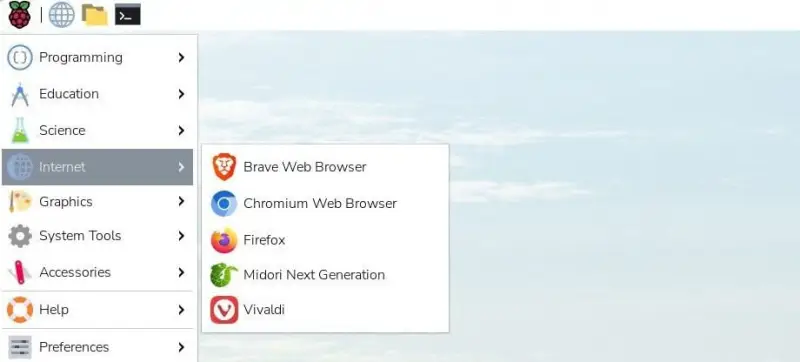
After installation, launch it from Pi menu > Internet > Browsers. The reported testing used Raspberry Pi OS Trixie.
Chromium: the practical default
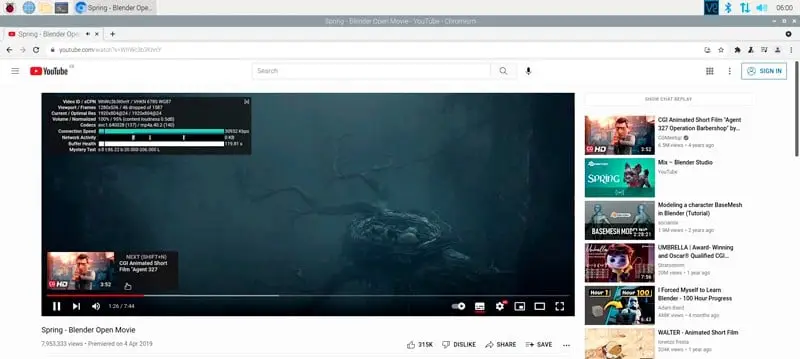
Chromium remains a sensible starting point for everyday use, particularly when browser synchronization is not required. It is the open-source browser behind Google Chrome, and the interface and extension model will feel familiar to Chrome users. Chrome Web Store extensions are supported, but Chromium does not provide the same built-in synchronization for bookmarks and passwords described for Brave and Firefox.
Its Speedometer score was 5.13, with 548 MB of RAM recorded. That puts it near the middle of this small comparison, rather than making it the clear benchmark leader. The Raspberry Pi Foundation optimizes Chromium for its platform, and the tester reported good results with YouTube compared with several other options. The article’s overall recommendation nevertheless identifies Chromium as the fastest practical choice for limited browsing; the benchmark values here are close enough that workload and board configuration matter.
Chromium is available through Raspberry Pi OS’s standard package sources and may already be installed. If needed, the supplied terminal command is:
sudo apt install chromium-browser
For users who mainly need a browser for documentation, settings pages or occasional video, Chromium’s combination of familiarity, platform tuning and moderate memory use makes it the uncomplicated choice. Its main limitation is the missing sync feature.
Vivaldi: extensive controls, more to manage
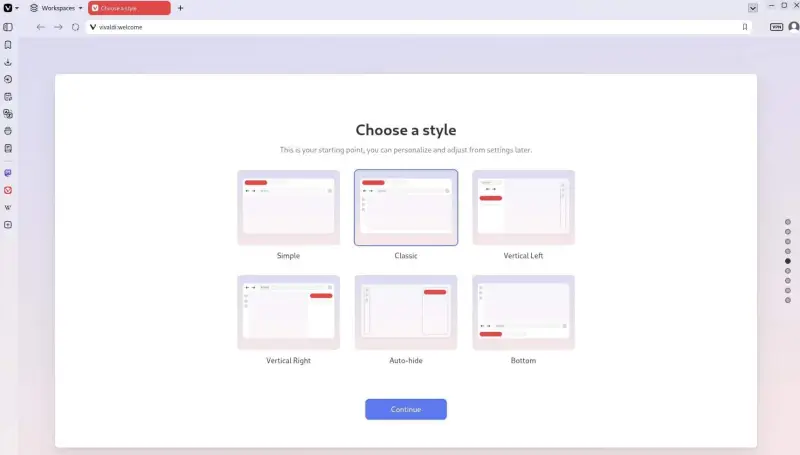
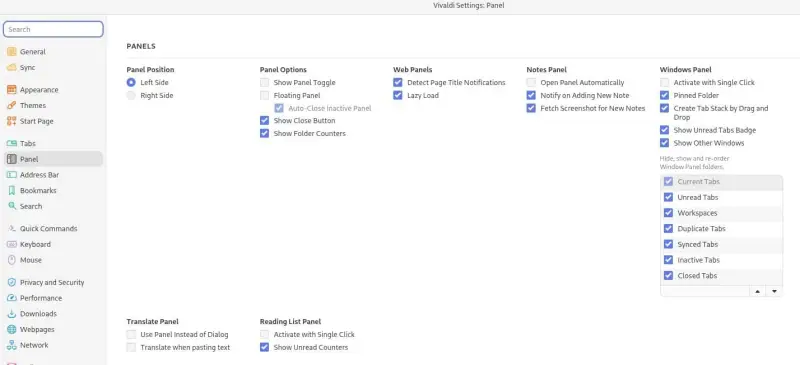
Vivaldi builds on Chromium and adds a broad set of browser features. It supports synchronization with a desktop installation, Chrome extensions and themes, and gives users many settings to adjust. The trade is a more involved interface: a nine-step first-run wizard offers choices ranging from essential browsing to mail, calendar and news feeds, and the settings panel presents a large number of options.
In the reported test, Vivaldi scored 5.94 on Speedometer, slightly ahead of Chromium’s 5.13, while using 653 MB of RAM. The tester found its general speed good despite the feature set. YouTube playback showed more dropped frames than some alternatives, though the tester said this was not especially noticeable during ordinary viewing. People who primarily watch video may prefer another browser.
Vivaldi is not fully open source, and its interface may take time to learn. It best fits users who enjoy customizing their tools and want synchronization and extensive built-in functions. Those who prefer a compact browser may find the configuration overhead unnecessary.
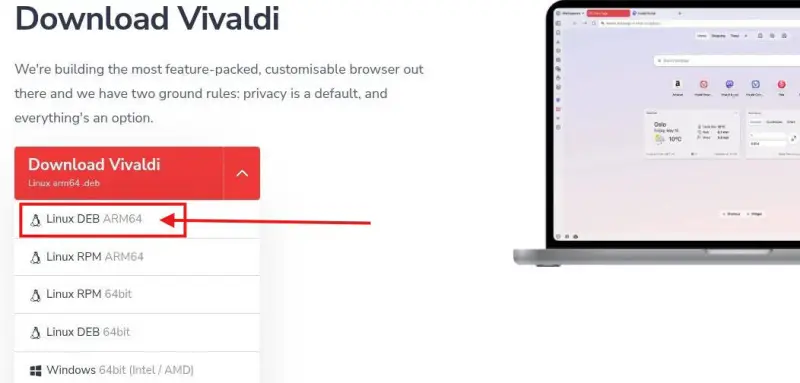
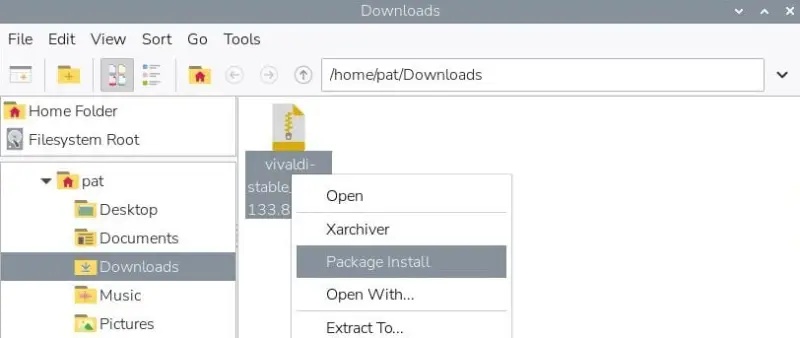
Raspberry Pi OS users can download the package from Vivaldi’s download page. Select the ARM64 build, then open the downloaded .deb file in the file manager and choose Package Install. Enter the account password when prompted. Once installed, launch it from Pi menu > Internet > Browsers.
Firefox: desktop continuity, highest memory reading
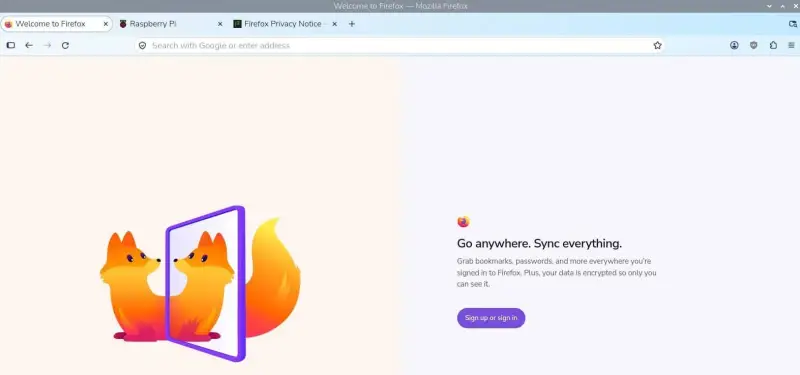
Firefox is the only browser in this group that is not based on Chromium. Its strongest case on a Pi is continuity: people who already use it on a PC can synchronize settings, extensions and passwords, and keep a familiar interface. It also supports Firefox extensions.
Performance is the concern. The test recorded 776 MB of RAM, the highest figure in the group, and a Speedometer score of 5.04. YouTube results were described as poor, with frequent dropped frames. Firefox is now included with Raspberry Pi OS, and the tester reports that platform optimizations have improved its performance. Even so, the results suggest keeping expectations modest, especially when many extensions are synced from a desktop profile.
The standard stable package is included with Raspberry Pi OS, so updating the system may be all that is needed. Access to the latest Firefox version and its full feature set may require Pi-Apps or another installation method. For a Pi with limited memory, trim extensions and consider whether sync is worth the extra resource demand.
Midori: a simple interface, but not a light workload
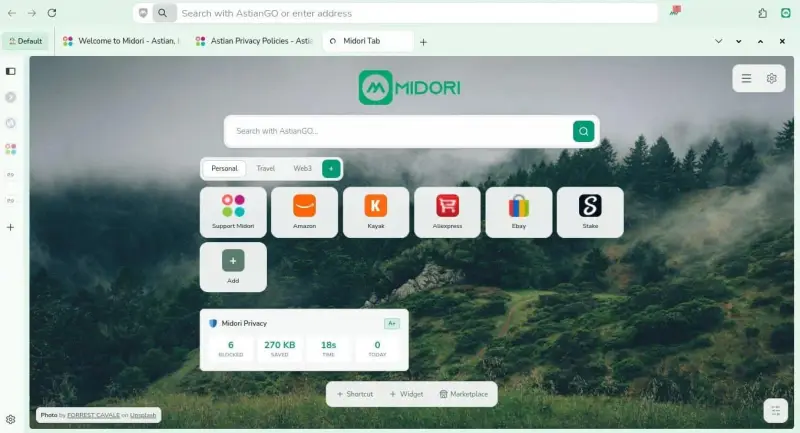
Midori is designed as a minimalist browser. Its simple interface could suit a secondary desktop on an older Raspberry Pi, such as a Pi Zero used mainly as a server, where a quick documentation lookup is more useful than a feature-rich browsing setup.
The test results complicate that case. Midori scored 5.18 and used 682 MB of RAM, roughly Chromium’s memory use in this measurement despite having fewer built-in features. It had the weakest speed results according to the tester’s assessment, and YouTube playback was poor. It supports multiple tabs, but offers few other features and limited settings. An ad-blocking extension was tested and did not work on most websites.
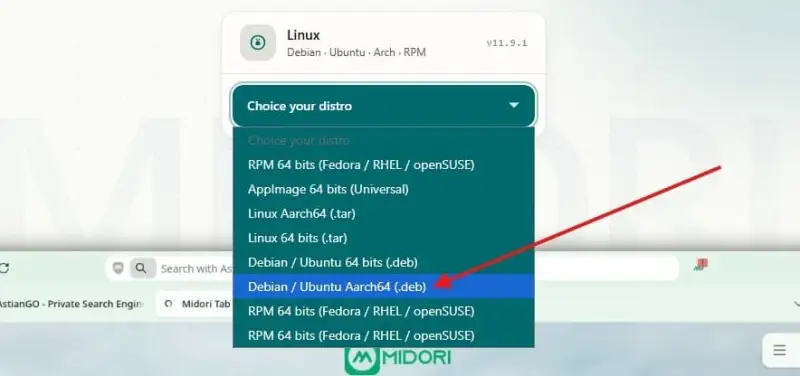
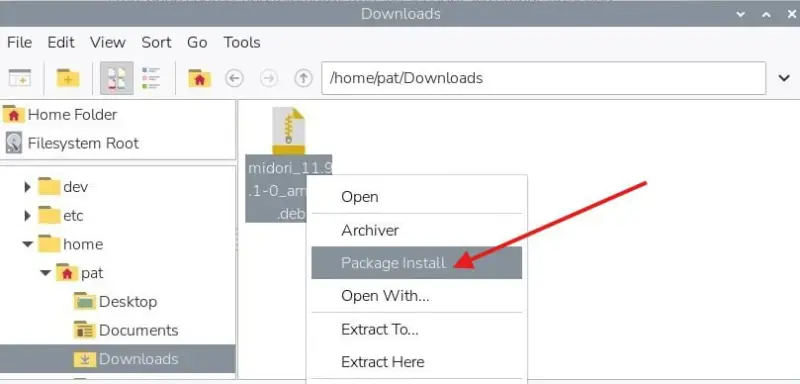
Midori is no longer available in the default Raspberry Pi OS repository or Pi-Apps. To install it, use the Midori download page and choose Debian Aarch64, the 64-bit package for ARM processors. Open the downloaded .deb file in the file manager, select Package Install and confirm with the account password. The browser appears under Pi menu > Internet > Midori.
Choosing for the workload
For general browsing without desktop synchronization, Chromium is the clearest recommendation. Brave makes sense when built-in ad and tracker blocking is a priority and its memory use fits the board. Firefox is the natural option for users who rely on its desktop sync, but it needs the most memory in these measurements. Vivaldi suits people who want to tune a browser and accept a busier interface. Midori is worth considering for basic tasks, though its test results do not show a memory advantage.
The benchmark table is best read as a snapshot, not a guarantee. Speedometer scores came from one test setup, and the RAM figures reflect one home page with no other programs running. Tab count, extensions, video playback and available system memory all affect the result. On a constrained Pi, the most useful browser is the one that leaves enough capacity for the rest of the job.
For users whose main concern is private browsing, Tor Browser is another option mentioned for Raspberry Pi. Its privacy-oriented use case is distinct from the five tested browsers, and no comparative benchmark is provided here.
 Choosing Single, Double, Welded Flap and Repair Keder for Fabrication
 Houston Engineering Team Builds a Welcoming Golf Tournament at East River 9
 CNC Steel Machining: Material Grades, Processes and Quality Factors