Wombat Firmware 3.24 Adds USB Game Controller Mapping for Classic Macs
Wombat 3.24 maps USB controller inputs to ADB keys and mouse movement, with four presets, custom profiles and two pointer modes.
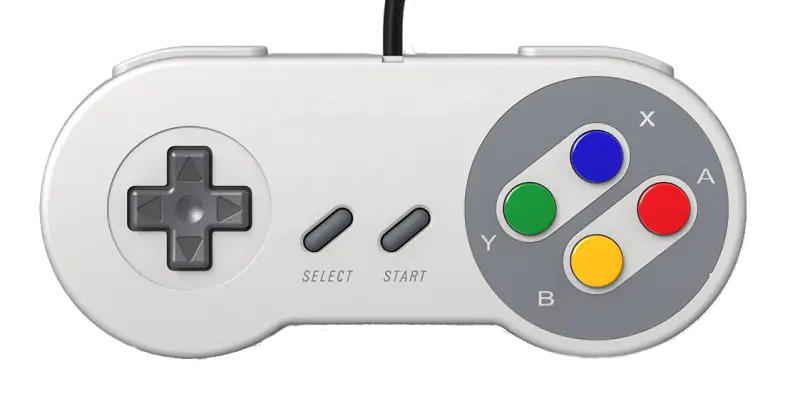
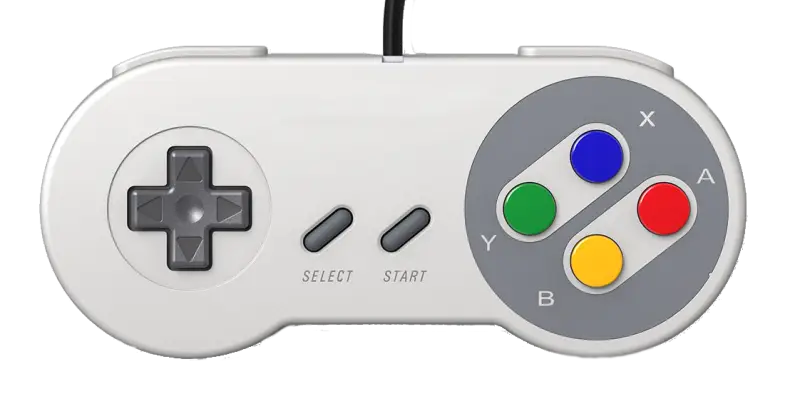
Wombat firmware 3.24 adds a way to use USB game controllers with ADB-equipped Macs: controller buttons become keyboard or mouse inputs, and the sticks can move the pointer. The practical question is how well those mappings suit individual games and whether pointer movement feels controllable. The firmware is available as ADB-USB Wombat firmware 3.24, and its developer is seeking feedback, especially on mouse control from the stick.
The central design choice is to provide four fixed mappings rather than bind each game to a unique controller layout. ARROWS, WASD, KEYPAD and FLIGHT translate the same physical controls into different keyboard conventions. That gives players a quick way to try a layout suited to a game, while leaving room to teach the adapter a different mapping when none of the presets fits.
Four presets translate controller inputs into Mac controls
In all four presets, the left stick duplicates the D-pad. The A button maps to Space, B to Shift, L1 to a mouse click, L2 to slower pointer movement, R2 to Tab and Start to Esc. The right stick controls the pointer, while R3, the right-stick click, switches pointer mode.
The profile differences are concentrated in directional controls and the X, Y and R1 buttons. ARROWS sends the D-pad directions as arrow keys; X maps to W, Y to R and R1 to Command. WASD uses W, A, S and D for movement, with X mapped to E, Y to Q and R1 to Command. KEYPAD uses keypad 8, 4, 2 and 6 for the D-pad, with X mapped to keypad 5, Y to keypad 0 and R1 to Command.
FLIGHT assigns the D-pad up and down to = and – respectively, and left and right to Z and X. Its X and Y buttons map to F and G, while R1 sends A. The remaining shared buttons keep their common mappings. Players select a preset by holding Select while pressing a D-pad direction: up for ARROWS, right for WASD, down for KEYPAD or left for FLIGHT.
The built-in layouts were designed for Prince of Persia, Dark Castle, Power Pete and Hellcats Over the Pacific. Their utility can extend beyond those games: a title that accepts the same keyboard controls may work with the corresponding profile even if it wasn’t one of the original targets.
Custom profiles learn button assignments
Wombat also provides four customizable profiles, set up through a learning mode in its preferences menu. To assign a controller button, press that button, then choose the keyboard key it should produce. A two-key combination can be assigned by pressing both keys together. A mouse click can also be assigned, and selecting Select on the controller leaves the chosen button without a function.
For a custom profile, the left and right stick functions can be swapped as well. If experimentation leaves a profile in an unusable state, it can be reset by cloning one of the fixed profiles. This gives users a clean starting point without requiring them to recreate a preset’s mappings by hand.
Compatibility needs testing across controllers
The firmware is intended to work with USB controllers in either X-Input or Direct Input mode, but the only model directly tested by its developer is the Logitech F310. Compatibility across other controllers therefore remains an open question; the stated support is theoretical rather than confirmed across a broad range of hardware.
For a controller that behaves incorrectly, a browser-based test page can capture technical data for a log file. The procedure requires connecting the controller to a PC or Mac and opening the page in Chrome or Edge; Firefox and Safari are listed as unsupported for this test. The resulting log can be sent to the developer, giving them controller-specific information to investigate.
That collection step matters because USB controllers can differ in how they report buttons and stick inputs. A mapping scheme can be sound while a particular device still needs investigation. The tested F310 establishes one working reference point; reports from additional models will show how far the firmware’s expected input handling extends.
Stick control exposes a mismatch between pointer and controller
A controller stick reports an absolute position within a small range, while a mouse reports relative movement across the desk. Wombat offers two ways to bridge that difference. Relative pointer mode treats the stick as a command to move: hold it left of center and the pointer travels left continuously, with greater displacement increasing the movement speed. Let the stick return to center and the pointer stops where it is.
Holding L2 slows that movement, which can help when a game needs careful pointer placement. The feel depends on several settings: the stick’s dead zone, the relationship between displacement and speed, the minimum and maximum movement rates, the Mac’s Mouse control panel and Wombat’s pointer-speed setting. The developer tuned the behavior using a handful of classic Mac games, so feedback from more controllers and games can reveal where those choices work well or need adjustment.
Auto-center mode uses the stick position to place the pointer on screen. Holding the stick steady leaves the pointer in place; returning the stick to center sends the pointer back toward the screen’s center. This suits flight simulators and games that use the mouse for aiming, where the stick’s position can represent a target direction rather than an ongoing movement command.
There are constraints. The Mac doesn’t natively support absolute pointing devices, so auto-center mode depends on setting the Mouse control panel to Tablet / Slowest. It also relies on the pointer’s initial location and the display resolution. If the pointer reaches a screen edge, centering can fail; the current implementation is tuned for 640×480. Those requirements make this mode more sensitive to the host setup than relative movement.
R3 switches between the two pointer modes in any profile. FLIGHT starts in auto-center mode; ARROWS, WASD and KEYPAD start in relative mode. The distinction gives users a straightforward first choice: continuous movement for most games, or position-based aiming where the game’s controls suit it. Testing across controllers, screen setups and game preferences will determine how broadly each mode feels usable.
 Choosing Single, Double, Welded Flap and Repair Keder for Fabrication
 Houston Engineering Team Builds a Welcoming Golf Tournament at East River 9
 MIG Transfer Modes: Choosing Between Short Circuit, Spray and Pulse