RoboDK AI Assistants Turn Natural-Language Requests into Robot Programs and Guidance
RoboDK Companion executes programming commands, while its Virtual Assistant answers questions about simulation and automation.

RoboDK’s two AI assistants address different bottlenecks in robot programming: one carries out commands in the software, while the other helps users understand how to solve a problem. Used together, they can shorten the time spent building routine programs or searching for guidance, while leaving engineering decisions with the user.
The tools are the RoboDK Companion add-in and the Virtual Assistant add-in. Companion interprets typed or spoken requests and acts on RoboDK commands. Virtual Assistant responds to questions about robot simulation, programming and automation, drawing on documentation, forums and blogs. RoboDK also offers an online chat for questions about its software.

One assistant acts; the other explains
Companion is aimed at getting work done inside RoboDK. Users can ask it to add motion instructions, change program settings, control a simulation, generate robot code or send a program to a robot. The add-in accepts natural-language text and speech-to-text commands, and its listed accessibility features include hands-free operation, high-contrast support and a simplified interface.
Virtual Assistant is geared toward guidance. Users can ask questions in multiple languages about the software and receive explanations that can point them toward relevant steps and resources. That makes it useful when a task is unfamiliar or a simulation behaves unexpectedly. The add-in’s listed accessibility details are not specified.
The distinction is practical: Companion is for issuing commands and assembling a program; Virtual Assistant is for understanding what to check and why. They can be used independently or together, depending on whether the immediate need is execution or explanation.
Describe a sequence instead of assembling every instruction
Companion can add joint, linear and circular moves, send a robot to its home target, set speed, insert a pause, choose a tool frame (TCP) or reference frame, and set digital outputs. It can also run or pause a program, enable fast simulation, toggle collision checking, generate a robot program and send that program to the robot.
For a sequence between already-created reference frames, a user could request linear motion through frames A, B, C and D, with the segment from B to C at half speed. The assistant can turn that description into program instructions. The value is clearest for repetitive setup: the user describes the intended sequence, then reviews the generated program and simulation rather than locating each command in menus.
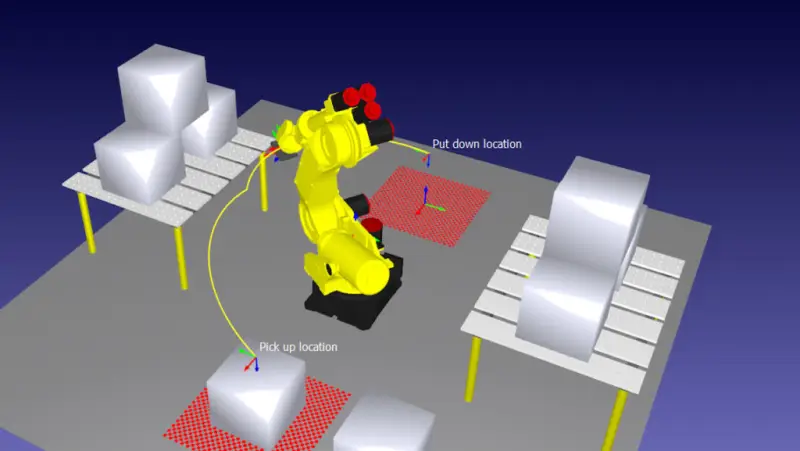
Natural-language control can reduce time spent finding features and learning the software’s command structure. It doesn’t remove the need to check whether the resulting instructions match the cell, tool and task. The assistant can speed up routine work, but the user still has to judge whether the program is appropriate.
Use guidance to trace a path mismatch
A simulated robot path that appears shifted, rotated or tilted points toward a frame, tool or configuration mismatch. Virtual Assistant can help organize the investigation. For a possible tool mismatch, its guidance is to compare the active program tool with the robot’s TCP values in the tool properties. If the values differ, correct the tool data in RoboDK and recalculate the path.
To regenerate the path, select the program in the program tree and choose “Update” or “Recompute.” Then compare the simulated tool tip’s point and orientation with the real robot’s. A persistent offset across the path suggests that the tool or frame data may still be wrong; matching shape alone doesn’t establish that the positions and orientations agree.
Once the simulated and real paths match, the next step is to generate the robot program with the appropriate post processor and run it on the robot controller. This sequence shows where conversational guidance helps: it can turn a vague symptom into specific checks, while the engineer verifies the data and behavior at each stage.

Choosing and installing an add-in
Companion’s main job is executing RoboDK commands and building programs; Virtual Assistant’s is answering questions about simulation, programming and automation. The former uses native RoboDK commands and accepts text or speech-to-text input. The latter answers natural-language questions in multiple languages, using documentation, forums and blogs as knowledge sources.
Both add-ins are available from the RoboDK add-in library and can be installed through the Add-in Manager. RoboDK provides a quick-tip tutorial, as well as feature pages for RoboDK Companion and the Virtual Assistant. Users who want conversational help before choosing can also try the online assistant chat.
For a familiar task that can be expressed as clear commands, Companion is the direct route. For an unfamiliar workflow or a problem that needs diagnosis, Virtual Assistant can help frame the next checks. The useful test is whether each suggestion produces a program or explanation that holds up against the robot cell’s actual tools, frames and controller.
 Choosing Single, Double, Welded Flap and Repair Keder for Fabrication
 Houston Engineering Team Builds a Welcoming Golf Tournament at East River 9
 MIG Transfer Modes: Choosing Between Short Circuit, Spray and Pulse